A Favicon Release Checklist for Sites in Subfolders
Trace icon URLs from a nested page, avoid relative-path surprises, and verify a favicon release before changing production files.
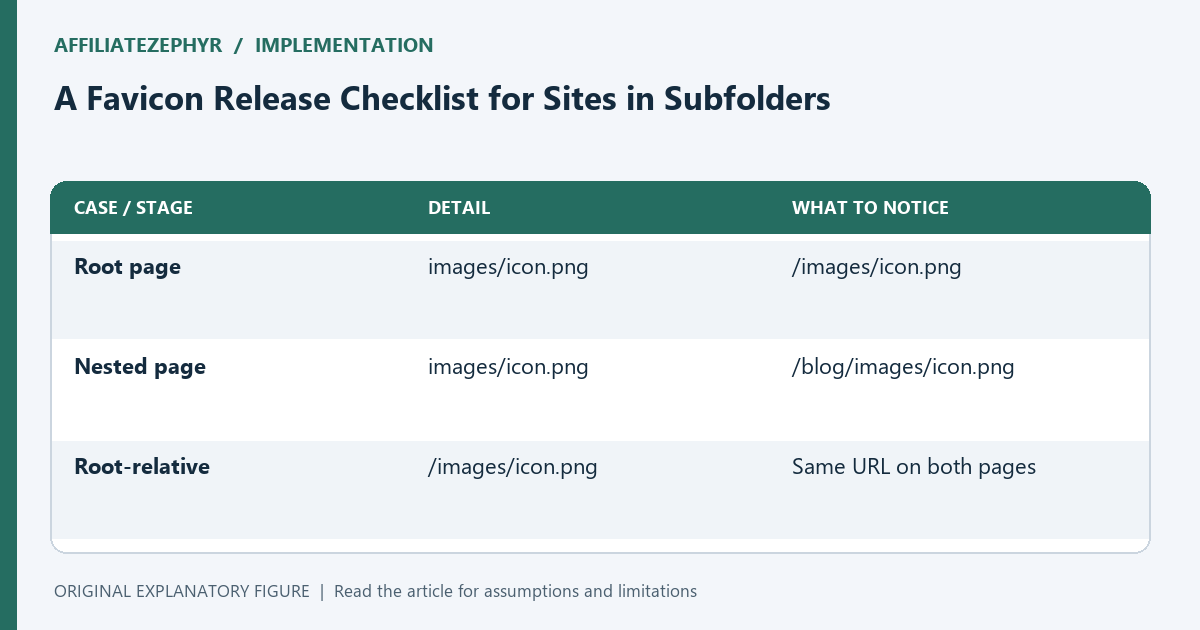
A favicon can work on your homepage and disappear on a nested article. The image itself may be fine: the browser is requesting a different address because a relative URL is resolved from the current document. This guide follows a small static site from a root page to a blog page and shows how to check the release without changing several variables at once.
Map the pages before choosing paths
Write down two real document URLs: one at the root and one inside a directory. For example, /index.html and /blog/release-notes.html do not share the same base directory. On the root page, images/favicon.png points to /images/favicon.png. On the article, the same string points to /blog/images/favicon.png. That second file may not exist.
Keep a short inventory of where your icon files actually live. Include the tab icon, touch icon, and manifest separately. Their purposes differ, and finding one correct image does not establish that every reference is correct.
Choose the deployment boundary
For a site served at the domain root, /images/favicon.png makes the intended location explicit across nested pages. For a site deployed under /demo/, that path still starts at the domain root, so /demo/images/favicon.png may be the intended address. A root-relative path is convenient only when it matches the deployment layout.
If one package must work under several prefixes, let your build system insert the base path or use carefully generated relative paths. Avoid copying a root-page head into every article without adjusting it. Document the chosen rule so the next page uses the same convention.
Test the request, not just the tab
Open a nested page and inspect its head. Resolve the icon href against the document URL, then visit that resolved address directly. In developer tools, reload with the Network panel open and inspect the response. A status of 200 with an HTML error page is not a valid icon response.
Check the response body and content type together. If a hosting fallback rewrites unknown paths to index.html, a broken image URL can look successful at the HTTP level. Fix the path or fallback rule before diagnosing favicon caching.
Release the smallest coherent change
Upload the new assets before publishing the pages that reference them. That ordering avoids a period in which fresh HTML requests missing files. If you rename the icon, keep the older file during the transition when practical: cached pages may still point to it.
For an illustrative release, publish favicon-r2.png, verify its direct URL, update the root and nested heads, and test both pages. Do not rename the manifest, reorganize directories, and change the artwork in the same debugging pass. Smaller changes leave fewer possible causes if the result is unexpected.
Keep a rollback note
Record the old href, new href, asset location, and the pages checked. A useful acceptance test says “the nested article requests /images/favicon-r2.png and receives an image,” rather than “the icon looked right once.” Check a fresh browsing session as well as your usual browser.
If the release fails, restore the previous HTML references and keep the uploaded new file for inspection. Once the paths are correct, use the linked caching guide for stale tabs. Path errors and cached artwork can coexist, but they require different fixes.
| Case or stage | Detail | What to notice |
|---|---|---|
| Root page | images/icon.png | /images/icon.png |
| Nested page | images/icon.png | /blog/images/icon.png |
| Root-relative | /images/icon.png | Same URL on both pages |