Check Transparent Favicon Edges on Light and Dark Tabs
Find export halos, accidental backgrounds, and disappearing outlines with a small repeatable favicon inspection sheet.
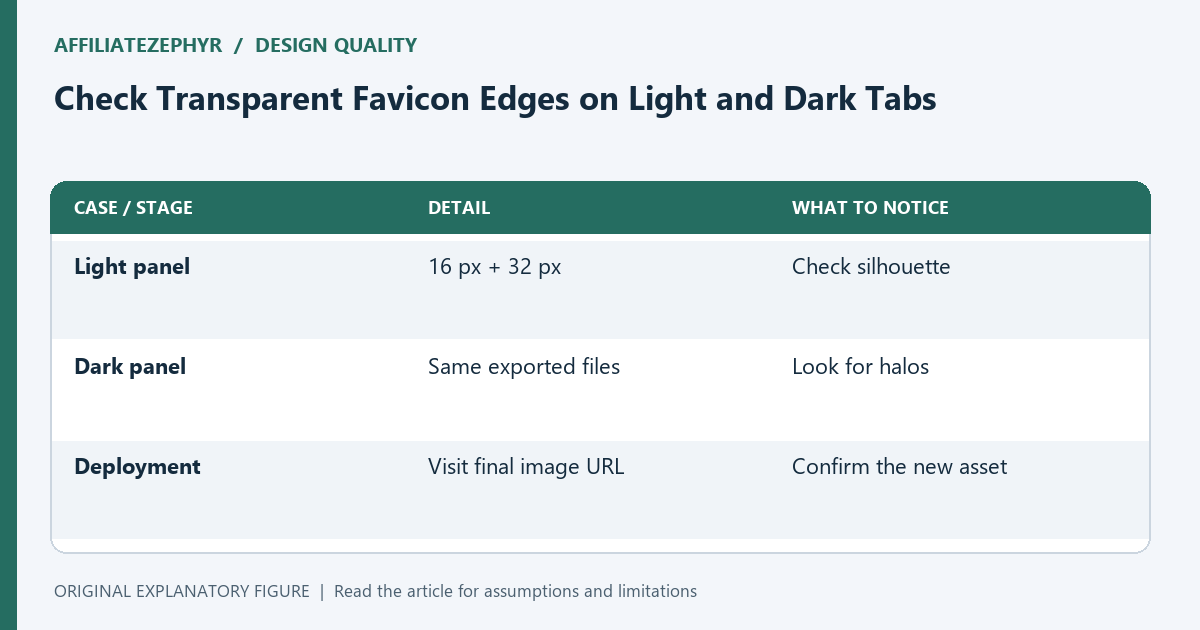
Transparent artwork can look clean on a designer’s canvas and show a pale fringe in a dark tab. The problem may be in the exported pixels rather than the browser. This guide explains how to inspect the edge of a small icon and decide whether to re-export it, simplify it, or change the design. All comparisons are visual checks, not browser compatibility guarantees.
Separate transparency from a white background
A white canvas and a transparent image displayed over white look similar. Place the exported icon over a dark rectangle to tell them apart. If a solid square appears, the file contains a background. If only a thin pale fringe appears around the symbol, inspect the edge pixels.
Keep the actual export as the test input. Looking at the vector source does not reveal errors introduced during rasterization. Test the same PNG you intend to upload, and repeat the check for each size you will publish.
Inspect at native size and enlarged size
Native size tells you whether the mark is recognizable. An enlarged nearest-neighbor view tells you which pixels create the fringe. Do not judge only a smooth enlarged preview, because its interpolation can soften the very edge you want to inspect.
Use four panels: 16 pixels over light, 16 over dark, 32 over light, and 32 over dark. If one-pixel outlines vanish in the smaller panels, increase their visual weight or remove them. If a fringe appears on every dark panel, return to the export settings before redesigning the whole symbol.
Avoid preblending against one canvas color
Partially transparent edge pixels help a raster shape appear smooth. If those pixels were blended against a white background before export, they may retain a light tint when shown over dark gray. Re-export from a source with a transparent canvas and review any matte or background option your editor provides.
Keep the source silhouette simple. A shadow or glow that looks subtle at 200 pixels can become a noisy ring at 16. Remove effects one at a time, compare the result, and keep the smallest change that fixes the observed issue.
Decide whether an opaque tile is better
Transparency is a design choice, not an obligation. A deliberate colored tile can give a pale symbol a stable background. It also changes the shape seen in the tab, so compare it with the transparent version in the same sheet.
An opaque tile needs enough inset space for the symbol to remain legible. Avoid filling the full square with fragile detail. If a tile works on both test backgrounds while the transparent symbol disappears on one, the tile may be the simpler design to maintain. Save both candidates so the decision is visible.
Verify the deployed file
After selecting an export, visit its final URL and compare the returned image with the local candidate. Confirm the server serves the expected file and the page requests that address. An old cached icon can make a fixed export appear unchanged.
Write down the size, format, source file, and background panels used for acceptance. The result should be a reproducible visual decision: “the outline remains visible at 16 pixels on both backgrounds,” rather than “it looks professional.” Use the dark-mode guide if you need theme-specific artwork after the basic export is clean.
| Case or stage | Detail | What to notice |
|---|---|---|
| Light panel | 16 px + 32 px | Check silhouette |
| Dark panel | Same exported files | Look for halos |
| Deployment | Visit final image URL | Confirm the new asset |