Separate Browser and CDN Evidence During an Icon Update
Compare direct responses, request headers, and fresh sessions to identify which layer still serves old favicon artwork.
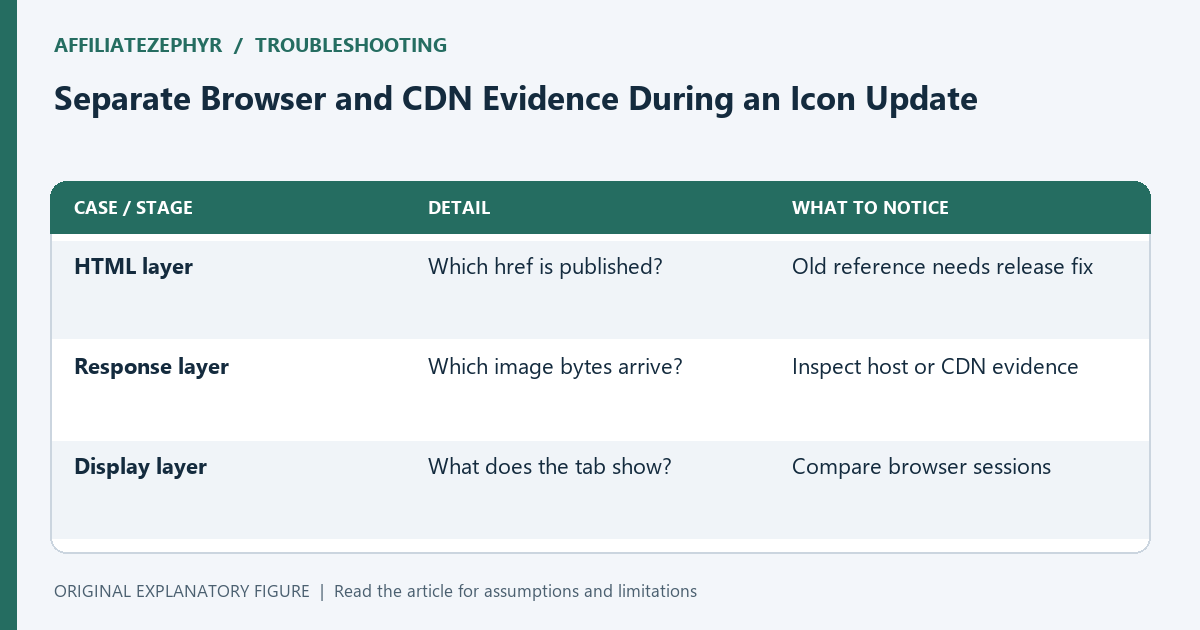
A stale tab icon can come from several places: old HTML references, a browser-held asset, or a managed cache serving an older response. Clearing everything at once may hide the cause. This guide builds a small evidence record so you can inspect one layer at a time. It explains an investigation, not a promise that a particular reload gesture always refreshes favicon storage.
Verify the published reference
Inspect the current page and copy its icon address. Compare it with the release note. If the HTML still points to the old filename, begin with template publication. A new image sitting in the asset folder does not help a page that never requests it.
Check a nested page as well as the homepage. Separate page caches from image caches: a cached page can retain an old reference even when the new image URL is publicly available.
Open the exact asset address
Visit the requested icon directly and inspect the response body. Record final URL, status, content type, and whether the artwork is old or new. A successful response containing HTML is a different problem from a valid old image.
When available, inspect Cache-Control, Age, ETag, and Last-Modified. These provide clues about the response and its validation policy. Their presence alone does not identify every custom caching rule your hosting provider may apply.
Compare sessions without changing the server
Try a fresh browsing session and your ordinary session using the same published page. If the fresh session gets the new asset while the ordinary session shows old artwork, local stored state is a plausible part of the problem.
If both receive old image bytes at the direct URL, investigate publication or managed caches first. Keep the response evidence separate from what the tab displays. A tab may continue to show stored artwork after the underlying image response has changed.
Use managed-cache controls narrowly
If your CDN or host exposes an asset purge, apply it to the verified stale address through the provider’s documented workflow. Avoid changing unrelated caching rules as a first response. Revisit the direct asset URL and compare the body afterward.
Managed caches can have provider-specific behavior. Do not infer that an ordinary browser refresh purges them. Record the control used and its scope so another maintainer can understand what changed.
Close the investigation with two observations
Confirm that the intended asset URL now returns the new image and that the affected page requests that URL. Then inspect tab behavior in the sessions you can test. Keep any remaining display issue in a separate note.
Use the caching guide when a verified new response still appears stale in a browser. The useful result is an evidence-based explanation of the layer involved, with the requested address and response recorded, rather than a general instruction to delete all cached data.
| Case or stage | Detail | What to notice |
|---|---|---|
| HTML layer | Which href is published? | Old reference needs release fix |
| Response layer | Which image bytes arrive? | Inspect host or CDN evidence |
| Display layer | What does the tab show? | Compare browser sessions |