Audit Duplicate Favicon Tags in a Shared Page Head
Find conflicting icon declarations from themes, plugins, and templates before deciding which asset to replace.
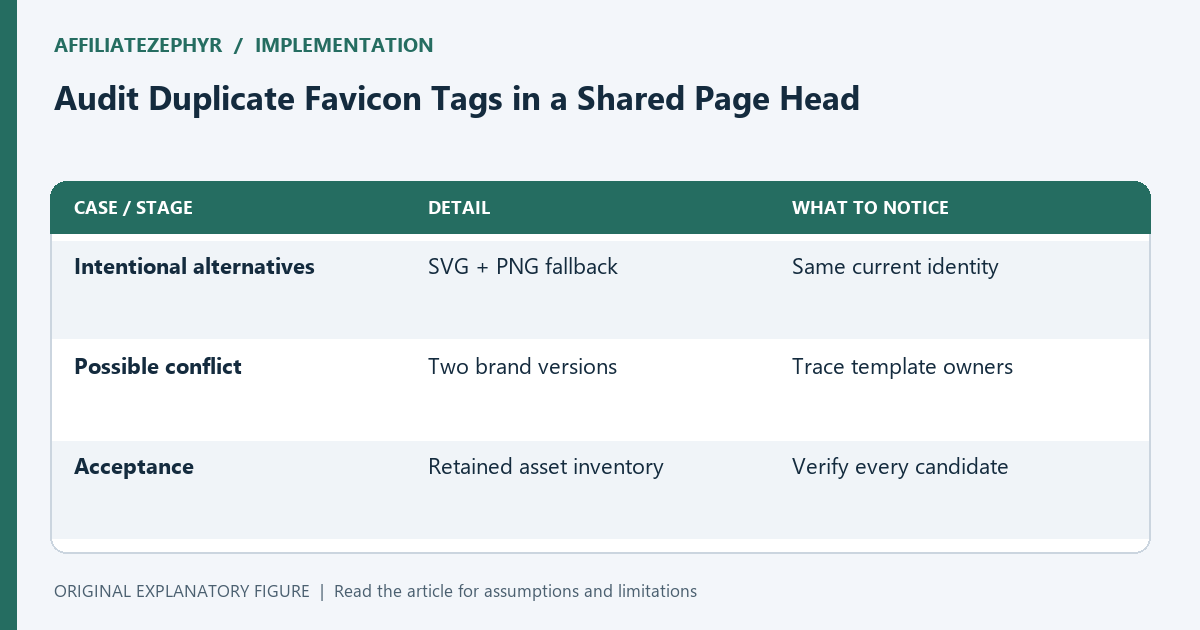
Changing an icon file can have no visible effect when a page declares several different favicon candidates. A theme, plugin, or copied template may each insert a link. This guide audits the rendered head of a small site and connects each declaration to its source. The objective is a deliberate candidate set, not a rule that every site must contain exactly one icon tag.
Inspect the rendered head
Open the affected page and list every link whose relationship is icon. Record href, type, sizes, and any media attribute. Inspect the delivered or rendered document rather than only the template you expected to run. Another layer may add declarations after your template is processed.
Keep touch icons and manifest references in separate rows. They serve different surfaces and should not be deleted merely because their filenames resemble the tab icon. A complete inventory prevents cleanup from removing a useful asset.
Distinguish alternatives from conflicts
An SVG candidate and a PNG fallback can be intentional. Two PNG declarations pointing at different brand versions may be an accidental conflict. Use purpose, declared dimensions, and actual artwork to classify the entries.
Do not rely on “the last tag wins” as a universal explanation. Browsers can select candidates using declared information and support. Your task is to make the candidate set coherent so any appropriate selection represents the current brand.
Trace each declaration to its owner
Search the project for the exact href and for the link relationship. Check a shared head partial, page-specific markup, and configuration that injects site icons. If a generated file contains the tag, locate the source used to generate it.
Write the owner beside each inventory row. Removing a tag from a generated output alone can be temporary: the next build may restore it. Repair the source responsible for the unwanted declaration and regenerate the affected pages.
Change one conflicting source
Keep the intended fallback set and remove or update the obsolete declaration at its source. Publish the assets before the pages that reference them. Then compare the root page, one nested article, and a tool page.
If the declaration remains on only one page type, inspect that template rather than clearing every browser cache. The observation tells you where the source difference lives. Save the before-and-after candidate lists so the change is reviewable.
Finish with a candidate acceptance record
Visit every retained asset directly and confirm its dimensions and artwork. On the page, inspect which requests occur. Test the browser combinations available to you and state which remain untested.
Use the favicon generator for the intended files and the format guide to understand alternatives. A clean inventory describes why each candidate exists and where it is maintained. That record is more durable than repeatedly changing filenames until one tab happens to look correct.
| Case or stage | Detail | What to notice |
|---|---|---|
| Intentional alternatives | SVG + PNG fallback | Same current identity |
| Possible conflict | Two brand versions | Trace template owners |
| Acceptance | Retained asset inventory | Verify every candidate |