Compare Standard and Maskable PWA Icon Crops
Use a safe-area overlay to evaluate whether the important part of an app icon survives launcher cropping.
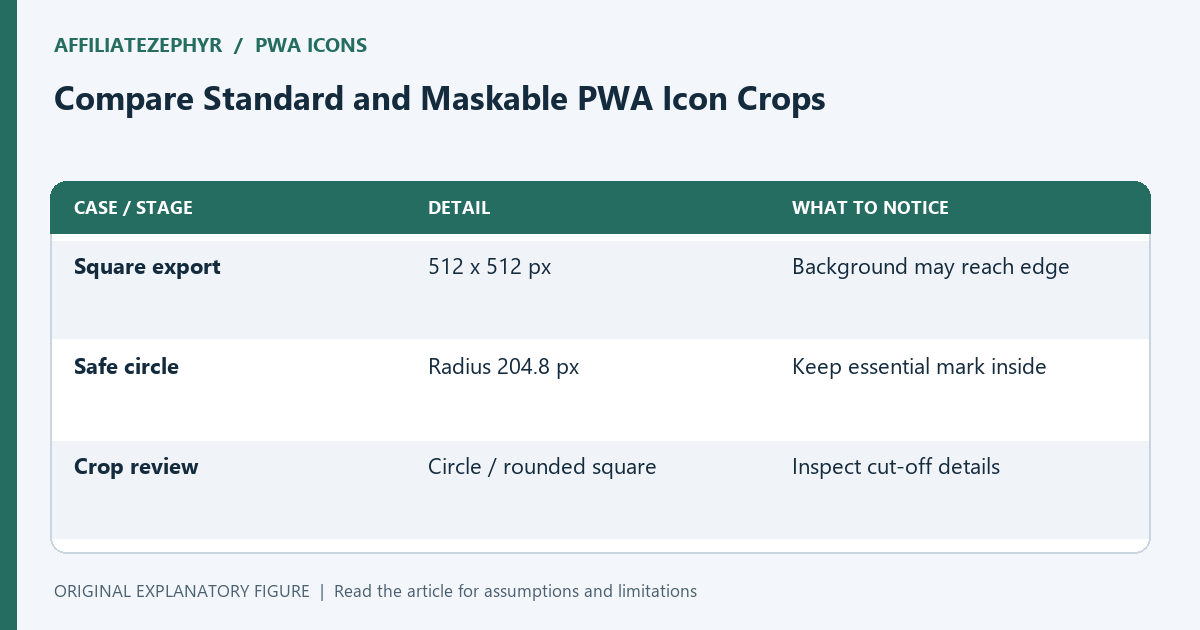
A square icon file is not necessarily displayed as a square. A launcher can apply a circle or another shape, and an icon intended for masking needs room around its important artwork. This guide helps you prepare a comparison sheet and distinguish an ordinary icon export from a maskable one before adding it to a web app manifest.
Identify the purpose of each asset
A manifest icon entry can declare its purpose. The any purpose is the general icon use; maskable signals artwork designed to survive a platform mask. Declaring maskable does not repair an export whose important content reaches the edge. The image must suit that use.
Make two candidates from the same brand mark: a standard icon and a full-background maskable icon with more inset space. Keep their filenames distinct. This makes it possible to review the intent of each file without guessing from a JSON entry later.
Draw the safe-area overlay
For maskable artwork, put essential content within a centered circle whose radius is 40 percent of the square’s width. A 512-pixel export therefore has a safe-area radius of 204.8 pixels. Background color and decorative texture can extend beyond that circle.
The overlay is a design check, not a promise about every launcher’s final appearance. A wordmark with long horizontal text often needs much more simplification than a compact symbol. Look at the smallest recognizable part first and ask whether it remains wholly inside the safe area.
Compare several crops side by side
Preview a square, circle, and rounded-square crop. Use identical source artwork in every panel so you are comparing crop behavior rather than different designs. If a letter’s tip disappears in one panel, shrink or redraw the mark in the maskable candidate.
Check the candidate at a small display size after the geometry passes. Excessive padding can make the symbol technically safe but visually tiny. Find a balance by changing the source mark, not by stretching the export. A thicker, simpler silhouette often survives both cropping and small-size viewing better.
Describe the files accurately in the manifest
List each file with its real size, media type, and intended purpose. Do not label a 192-pixel image as 512 pixels merely because the larger entry seems desirable. Use separate any and maskable entries when the artwork differs.
Visit the resolved image addresses from the deployed manifest location. Manifest icon paths are resolved in their own context, so a correct page-level favicon does not prove these paths work. Confirm the downloaded file dimensions before moving to an install or home-screen test.
Record what the launcher actually shows
Install or add the test app using the device and browser combination you can check. Capture the resulting home-screen appearance and compare it with your crop sheet. Keep the device, browser, and asset version in your notes.
If only an older installed shortcut looks wrong, distinguish stored artwork from a new installation result. Avoid changing all sizes to chase one stale shortcut. The acceptance record should state which combinations you checked and what remained untested. That gives the next release a useful starting point.
| Case or stage | Detail | What to notice |
|---|---|---|
| Square export | 512 x 512 px | Background may reach edge |
| Safe circle | Radius 204.8 px | Keep essential mark inside |
| Crop review | Circle / rounded square | Inspect cut-off details |