Keep Preview and Production Icons Distinct During Development
Choose a recognizable preview marker and maintain separate references so a staging tab is easy to distinguish.
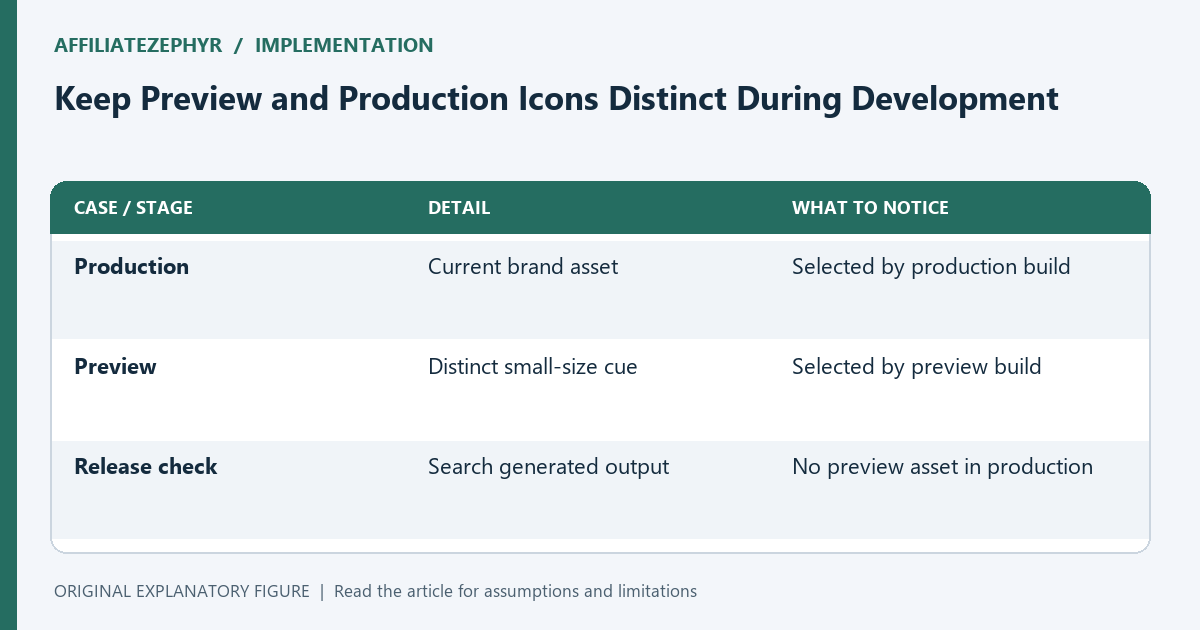
Several tabs with the same brand icon can make a preview site difficult to distinguish from production. A deliberate preview marker can reduce that confusion, but it needs a controlled release boundary. This guide explains how to maintain the two asset sets without accidentally publishing the preview artwork. It concerns visual environment cues, not access control or protection of unpublished data.
Define the environments explicitly
Write the production and preview hostnames or base paths used by your project. Include local development if it uses a different build configuration. The asset choice should follow an explicit environment setting, not an improvised filename edit before each upload.
Keep the preview cue visible elsewhere in the page too. A favicon alone is a small and sometimes cached signal. It should support a clear environment label rather than become the only way to identify where you are working.
Design a simple preview variation
Use one obvious change that survives at small size: a distinct tile color or a short marker that remains legible. Avoid adding a tiny word such as staging to a detailed logo and assuming it can be read in a tab.
Compare production and preview exports side by side at sixteen pixels. The preview variation should remain recognizable as your project while being visibly different. Record the exact candidate you chose rather than relying on a vague color description.
Keep asset ownership separate
Use clear names such as icon-production.png and icon-preview.png, or separate build asset directories. Record which configuration inserts each reference. A shared template can still be used if the build selects the intended value deliberately.
Do not edit the production source in place simply to create a preview. That makes an accidental upload easier. Keep both source drawings and both exported sets so switching environments does not require reconstructing the artwork.
Check the build output
Before deployment, inspect the generated head and direct asset URL for each environment. Search the production output for the preview filename or marker. If it appears, trace the configuration that selected it.
For a site with articles, inspect a root page and one nested page. Different templates can choose different references. The acceptance condition is a consistent environment cue across the published page types, not one successful homepage observation.
Document the release boundary
Write the expected icon for each environment and a short pre-release check. Keep a rollback address if the wrong candidate reaches production. Confirm the delivered image before treating a stale tab as a configuration failure.
Use the generator for each set and the implementation guide for the references. Remember that a distinct preview icon does not secure the preview site. It is a usability cue that works best alongside explicit labels and an understandable deployment process.
| Case or stage | Detail | What to notice |
|---|---|---|
| Production | Current brand asset | Selected by production build |
| Preview | Distinct small-size cue | Selected by preview build |
| Release check | Search generated output | No preview asset in production |