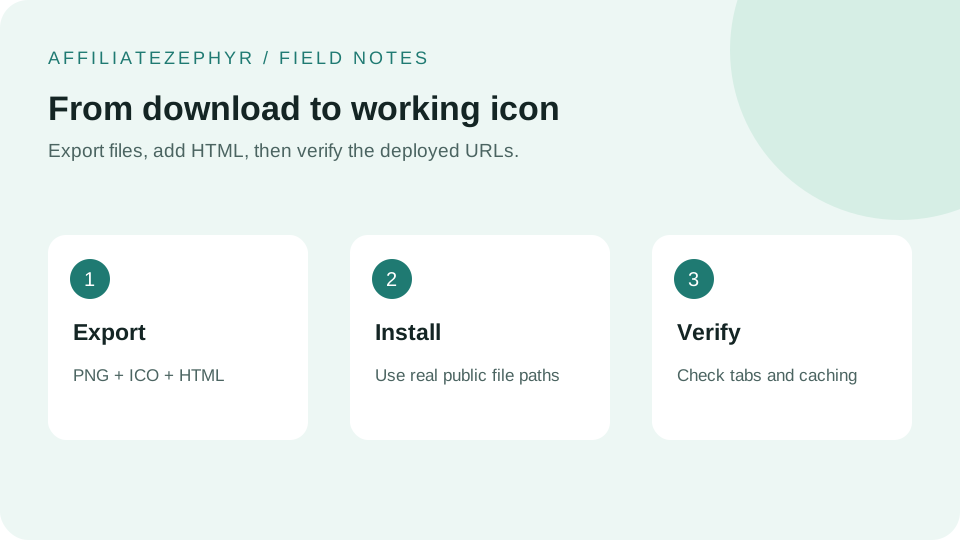
Once you've generated a set of favicon files, actually wiring them into a website involves two steps: uploading the files to the right location, and adding a handful of HTML tags to your page's <head> section.
Step 1: Upload the files to your site's root folder
Most favicon files are conventionally placed in the root directory of a website (the same level as your homepage file), though they can technically live in a subfolder as long as the HTML paths described below point to the correct location. A common convention is uploading directly to the root as favicon.ico, favicon-32x32.png, and so on.
Step 2: Add the HTML link tags
Inside your site's <head> section, add lines like these (adjusting file paths to match where you uploaded them):
Our free Favicon Generator produces this exact snippet automatically, matched to the files it generates, ready to copy and paste.
Why the favicon.ico line doesn't always need explicit HTML
Most browsers automatically look for a file named exactly favicon.ico in a site's root directory, even without an explicit HTML tag — this is a long-standing browser convention rather than a formal requirement. Including the explicit <link rel="shortcut icon"> tag anyway is still good practice, since it removes any ambiguity and works correctly even if the file happens to live somewhere other than the root.
The Android/PWA manifest file (an additional step)
For full Android and Progressive Web App icon support, sizes like 192x192 and 512x512 are typically also referenced inside a separate manifest.json file, in addition to (or instead of) a direct HTML link tag — a more involved setup covered in our dedicated guide on Android Chrome icons and the web app manifest. For a simple site, the direct HTML link tags above are sufficient; the manifest file becomes more relevant if you want your site to behave more like an installable app on Android.
Testing that it actually worked
After uploading files and adding the HTML, reload the page in a fresh incognito/private browser window (to avoid any caching issues, covered in our dedicated troubleshooting guide) and check the browser tab for the new icon. If it's still not showing, caching is the most likely culprit, not an error in the setup itself.
Platform-specific setup guides
If you're using a website builder or CMS rather than hand-editing HTML, the general steps above still apply conceptually, but the exact upload location differs — see our dedicated guides for WordPress favicon setup and Shopify favicon setup.
Generate your files
Use our free Favicon Generator to create the complete file set and matching HTML snippet in one step, ready to upload and paste.
Example: installing this generator's exported files
The ZIP uses names such as favicon-32x32.png and favicon-180x180.png. Match those actual names rather than copying an example that points to a different file. Place the following in the document head when the files are deployed at your domain root:
<link rel="icon" href="/favicon.ico">
<link rel="icon" type="image/png" sizes="32x32" href="/favicon-32x32.png">
<link rel="apple-touch-icon" sizes="180x180" href="/favicon-180x180.png">
If your site lives at /portfolio/ and the files are inside that folder, use /portfolio/favicon-32x32.png. A leading slash points to the domain root, not the folder containing the current HTML page.
Verify the result instead of relying on one tab
- Open every referenced image URL and check that it returns the correct artwork.
- Inspect the deployed page source to confirm the tags are inside the head.
- Test a new browser profile if the previous icon remains cached.
- On a phone, remove the old saved shortcut and add the page again to test the touch icon.
The generator does not create a manifest. If your website needs one, configure it separately and reference the 192 and 512 px files there. Reference: MDN icon and manifest link relations.
Keep reading: