Plan a Favicon Rebrand Without Losing Track of Old Assets
Build an asset inventory, compare recognizable shapes, and sequence an icon rebrand with a practical rollback plan.
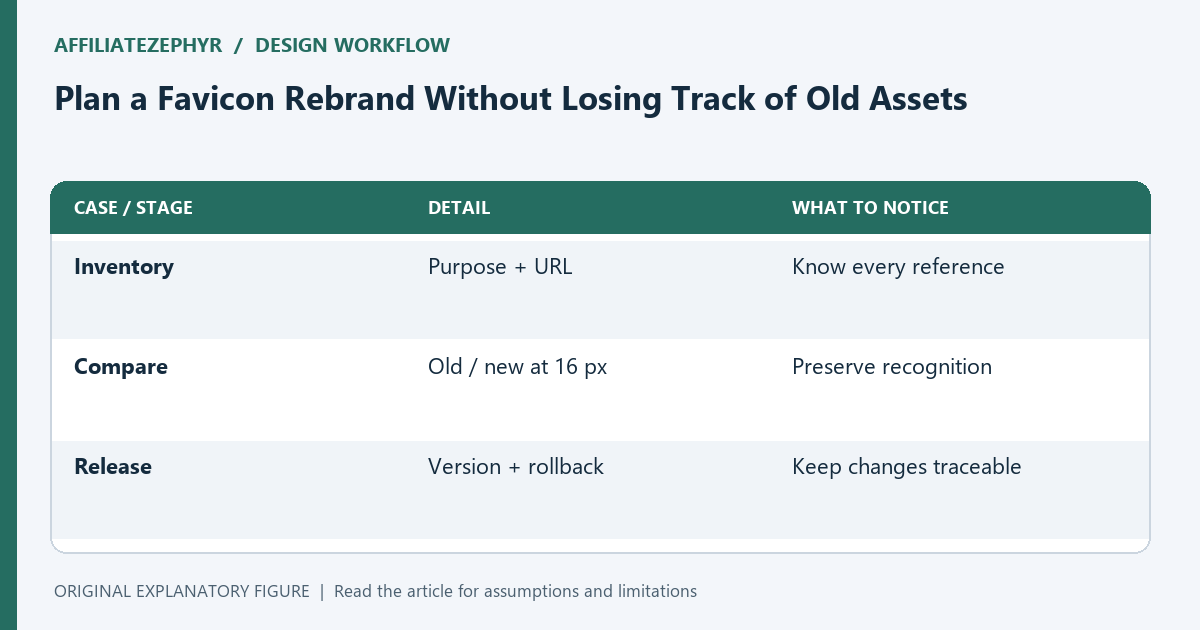
A rebrand can leave several versions of a small icon scattered across templates, manifests, and image folders. A disciplined inventory is more useful than repeatedly exporting the logo until a tab looks right. This workflow is for a small website whose owner needs to replace its identity while keeping every published reference understandable.
Inventory references, not just filenames
Search the project for rel="icon", apple-touch-icon, and the manifest link. Open the manifest separately and record each icon entry. Include templates or shared head partials, because a single source file may generate many pages. Also note any icon referenced by a service worker or application shell.
Create four columns: purpose, current address, replacement address, and verification page. This turns “replace the favicon” into a bounded task. Do not assume a file called logo.png is used everywhere, or that deleting an apparently unused icon is safe before searching generated pages.
Choose a recognition anchor
Pick one characteristic that survives at tiny sizes: a silhouette, a letterform, or a distinctive color arrangement. Your large logo may contain a subtitle, fine outlines, or several symbols that compete at 16 pixels. A simplified icon should preserve the chosen recognition anchor rather than every detail.
Compare the old and new symbols at actual tab size on light and dark backgrounds. Use a sheet with both versions side by side. Ask whether the replacement still belongs to the same brand and whether it can be distinguished from an unrelated, simple shape.
Use a versioned asset set
Keep related exports together under a clearly named version, such as brand-r2. Record which source drawing produced them. A filename can describe purpose as well as version: tab-r2.png and touch-r2.png are easier to audit than final-new-2.png.
Avoid changing a familiar asset in place while also editing several references if you need an easy rollback. Versioned files let an old page and a new page retrieve their respective artwork during a staged release. They do not guarantee instant browser updates, but they make the intended request unambiguous.
Walk through a small acceptance matrix
Choose one root page, one article, and one tool page. On each, inspect the declared icon references and visit the target assets directly. Check a browser tab separately from a saved home-screen shortcut; they are different surfaces and may not update together.
Use a matrix with page rows and surface columns. Mark a result only after observing it. Leave unsupported or untested combinations explicitly blank instead of calling the release “tested everywhere.” A short honest matrix is more useful for future maintenance than an unsupported claim of universal compatibility.
Close the release with a cleanup decision
Record the publication date, changed references, and rollback instructions. Keep old files until you have checked whether live pages or cached application resources still request them. Your cleanup window depends on the hosting and caching setup; it is not a universal number of days.
After cleanup, repeat the project search and make sure no published template points at a deleted asset. Save the inventory beside the source drawing. The next rebrand then begins with a known asset map rather than another guessing exercise through folders full of nearly identical images.
| Case or stage | Detail | What to notice |
|---|---|---|
| Inventory | Purpose + URL | Know every reference |
| Compare | Old / new at 16 px | Preserve recognition |
| Release | Version + rollback | Keep changes traceable |