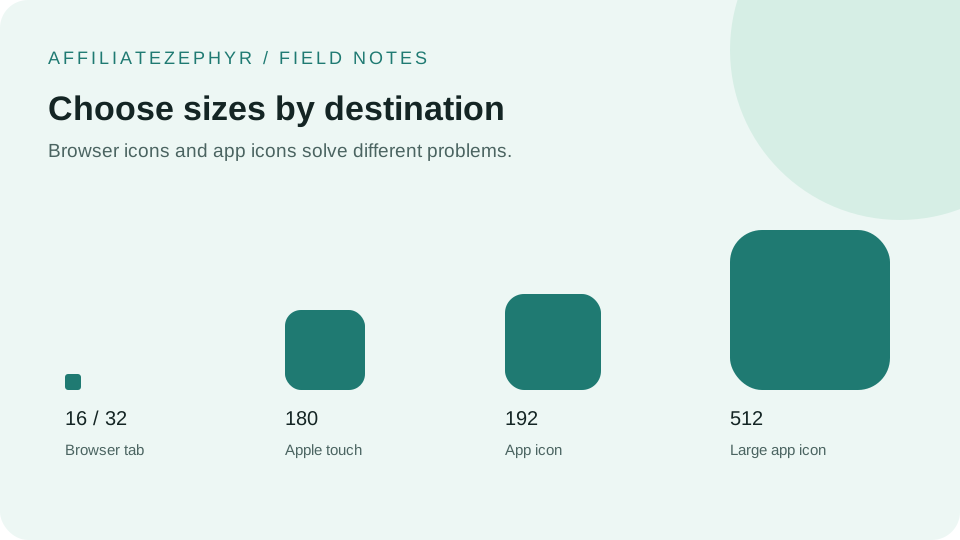
It's a common surprise for anyone setting up a favicon for the first time: there isn't just one size to worry about. Different devices, browsers, and contexts each expect their own specific dimensions, and providing the wrong size (or none at all) for a given context often means a blurry or missing icon.
The standard sizes and what each is for
| Size | Primary use |
|---|---|
| 16×16 | Classic browser tab icon, the original favicon size |
| 32×32 | Retina/high-DPI browser tabs and taskbar shortcuts |
| 48×48 | Windows site shortcuts and some desktop contexts |
| 64×64 | Larger desktop and taskbar contexts |
| 128×128 | Chrome Web Store listings and some extension contexts |
| 180×180 | Apple touch icon — iOS home screen, covered in our dedicated guide |
| 192×192 | Android home screen and Chrome's web app manifest |
| 512×512 | Progressive Web App splash screens and app store-style listings |
Our free Favicon Generator creates all eight of these sizes automatically from a single uploaded image.
Why not just use one large size for everything?
Browsers and devices generally scale down a larger image if a specific size isn't provided, but this scaling isn't always as clean as a purpose-generated, correctly-sized image — and at very small sizes (particularly 16x16), fine detail in a downscaled large image often becomes muddy or illegible in a way that a specifically designed 16x16 version avoids. Our guide on designing a favicon that works at 16x16 covers this challenge specifically.
Why not just use one small size for everything?
The reverse problem: a small 16x16 image stretched up to fill a 512x512 space (needed for PWA splash screens, for instance) looks pixelated and low quality, since there's no additional detail to reveal by simply enlarging a small source image. This is why providing purpose-generated sizes in both directions — not just one size scaled elsewhere — produces the sharpest result across every context.
Do you need every single size?
For a typical business or personal website, the most commonly needed sizes are 16x16 and 32x32 (browser tabs), 180x180 (Apple touch icon), and 192x192 plus 512x512 (Android/PWA contexts) — the 48x48, 64x64, and 128x128 sizes cover narrower use cases and can be safely skipped for simpler sites. Our tool generates the full set regardless, so you can pick and choose which files to actually upload to your site.
The ICO file: a special case
Beyond the individual PNG sizes, a traditional favicon.ico file can actually embed multiple sizes (typically 16, 32, and 48) within a single file, which is how the classic favicon format worked before individual PNG-based icons became common. Our guide on ICO vs PNG vs SVG favicons covers when this multi-size format is still worth including.
Generate every size at once
Rather than manually resizing an image eight different ways, our free Favicon Generator produces the complete set — including a proper multi-size .ico file — from a single upload, ready to download individually or as one ZIP file.
A practical file selection example
For a static portfolio without an installable app, start with the multi-size ICO, the 32 px PNG, and a 180 px Apple touch icon if you want to support saved iPhone shortcuts. Do not treat the 128 px export as a mandatory website requirement: an extension store listing is a separate publishing context.
For a web app, add 192 and 512 px entries to your manifest. These sizes alone do not define how splash screens will look, and a regular icon is not automatically safe for a maskable crop. Keep the main artwork away from the edges and configure the icon purpose deliberately.
Check dimensions before deployment
- Open each exported file in an image viewer and inspect its pixel dimensions.
- View the 16 px version at 100% zoom; a zoomed preview can conceal lost detail.
- Keep filenames consistent with the HTML and manifest references.
- Open the deployed image URLs directly to verify that they return images rather than your site's fallback HTML page.
Reference: MDN manifest icon sizes and purposes.
Keep reading: